
How to Add a Staff Member
Follow this step-by-step guide to invite and manage team members in your account
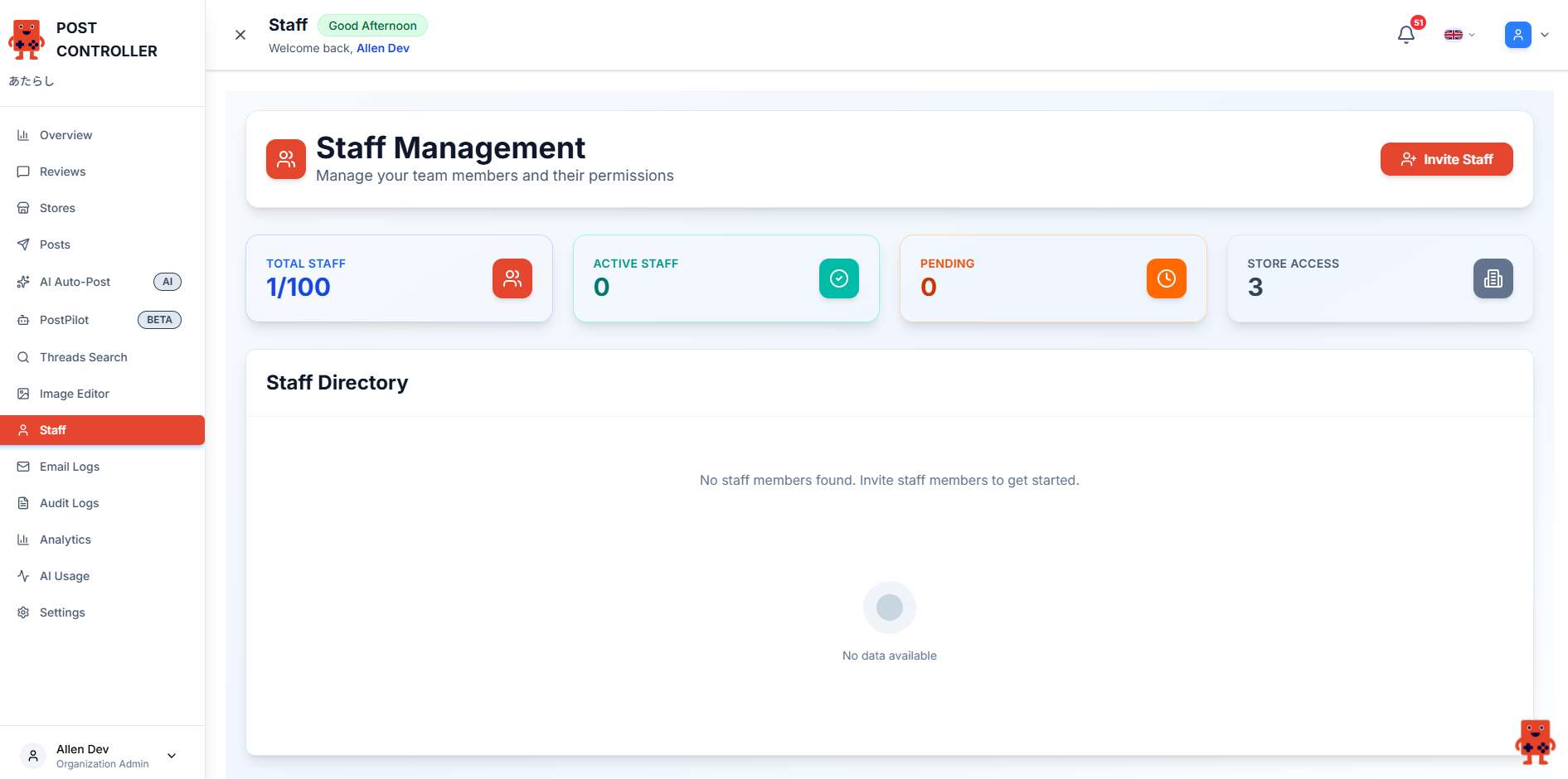
Navigate to Staff Members
From the sidebar menu, click on "Staff Members" to access the team management page. Then click the "Add Staff Member" button in the top right corner.
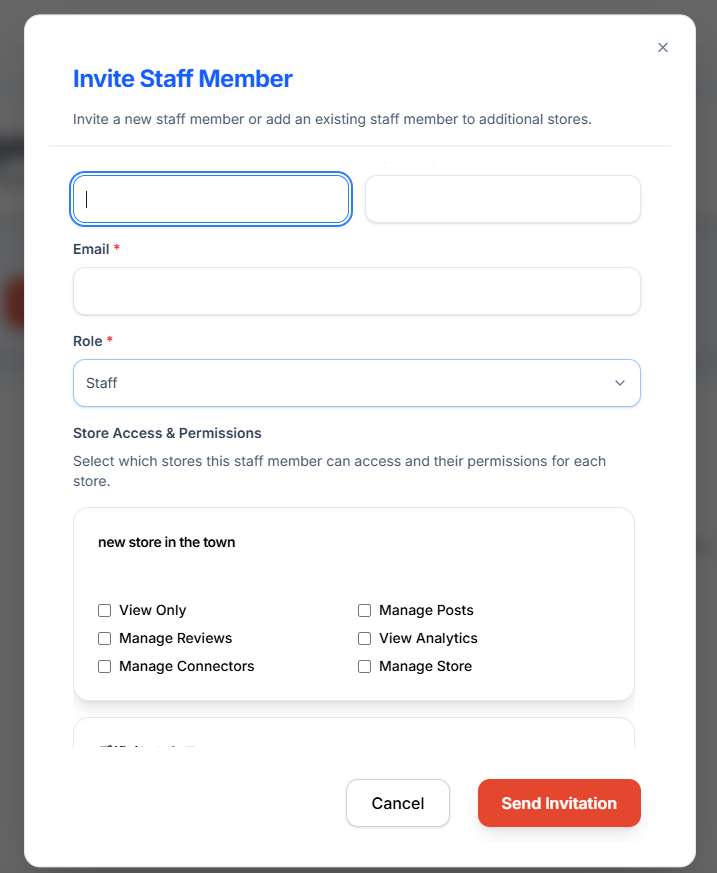
Enter Staff Member Details
Fill in the staff member information including their name, email, and role. You can also set their permissions and access level.
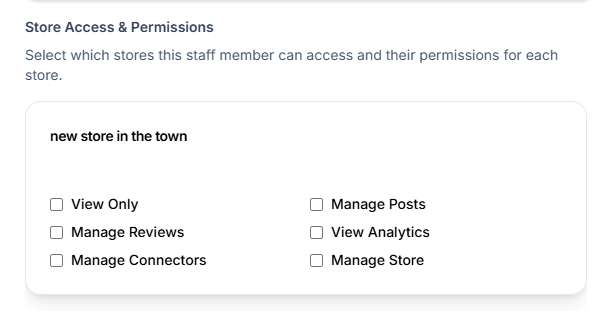
Set Permissions
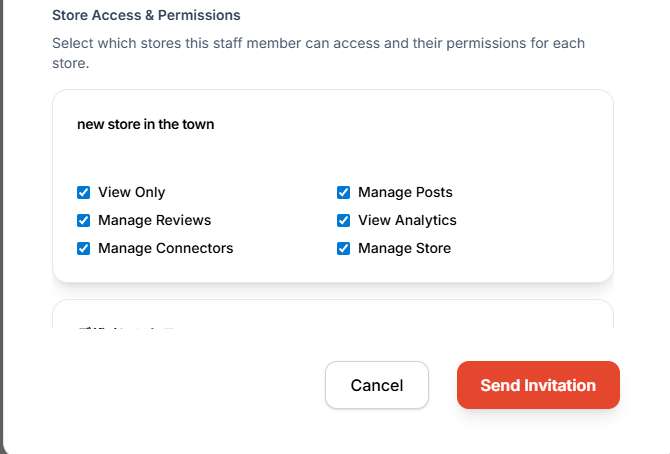
Choose what level of access the staff member should have. You can grant them full admin access or limit their permissions to specific features. You can also set different permissions for each store, allowing granular control over what staff members can access.
Save and Send Invitation
Review all the information and click "Add Staff Member" to send an invitation email. The new team member will receive an email to join your account.
Pro Tips
- ✓
Role-Based Access: Assign appropriate roles (Admin, Manager, Staff) to control what each team member can access
- ✓
Email Verification: New team members must verify their email address before accessing the account
- ✓
Manage Existing Staff: You can edit permissions or remove staff members at any time from the Staff Members page
- ✓
Team Collaboration: Add multiple team members to collaborate on social media management and share the workload