
How to Connect LINE Official Account
Complete step-by-step guide to connecting your LINE Official Account using Channel Access Token from LINE Developers Console
Already Have a LINE Channel?
If you already have a LINE Official Account and Messaging API channel set up, you can skip directly to Step 8 to get your Channel Access Token and connect to POSCOS.
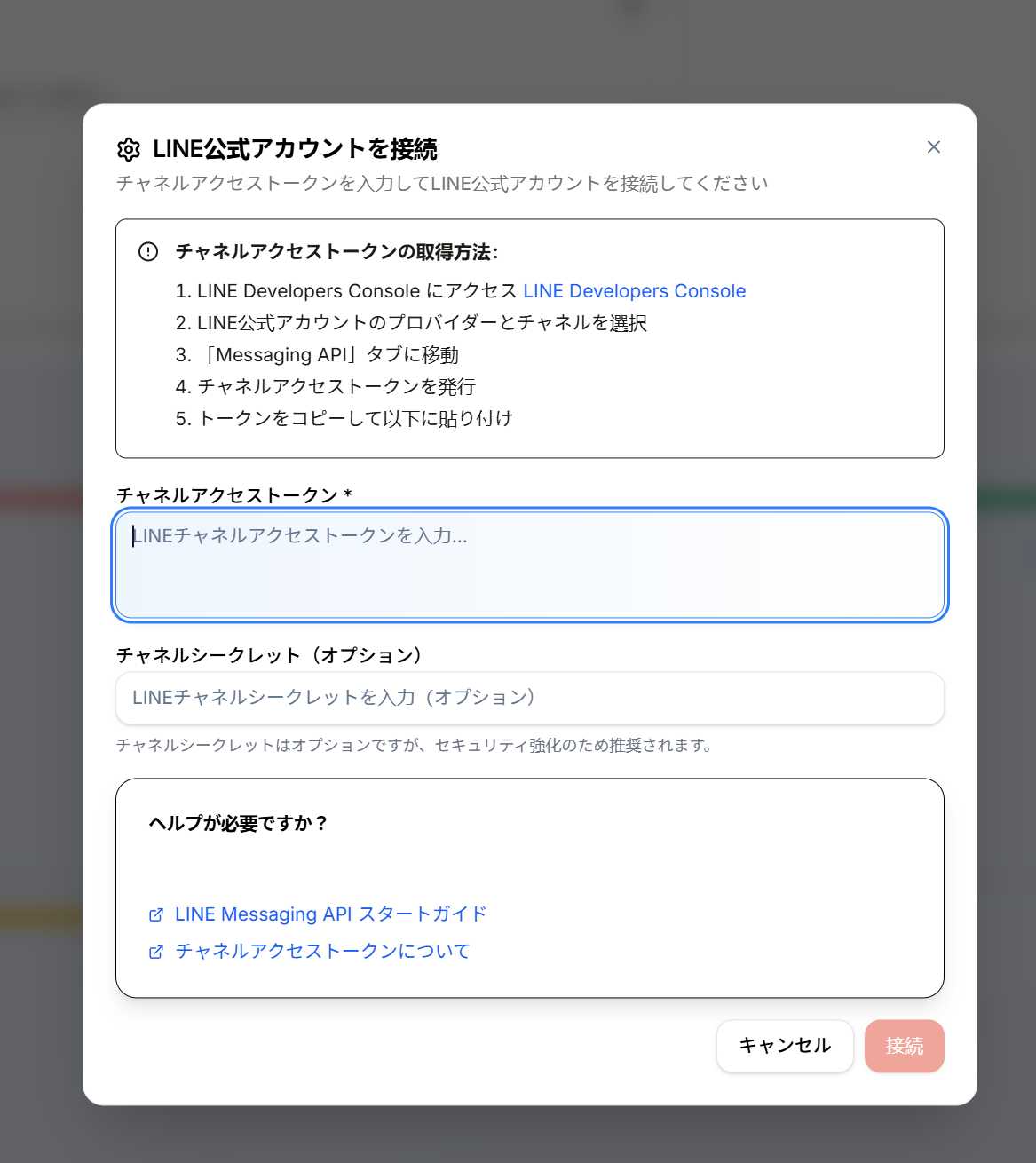
Open LINE Connection Dialog in POSCOS
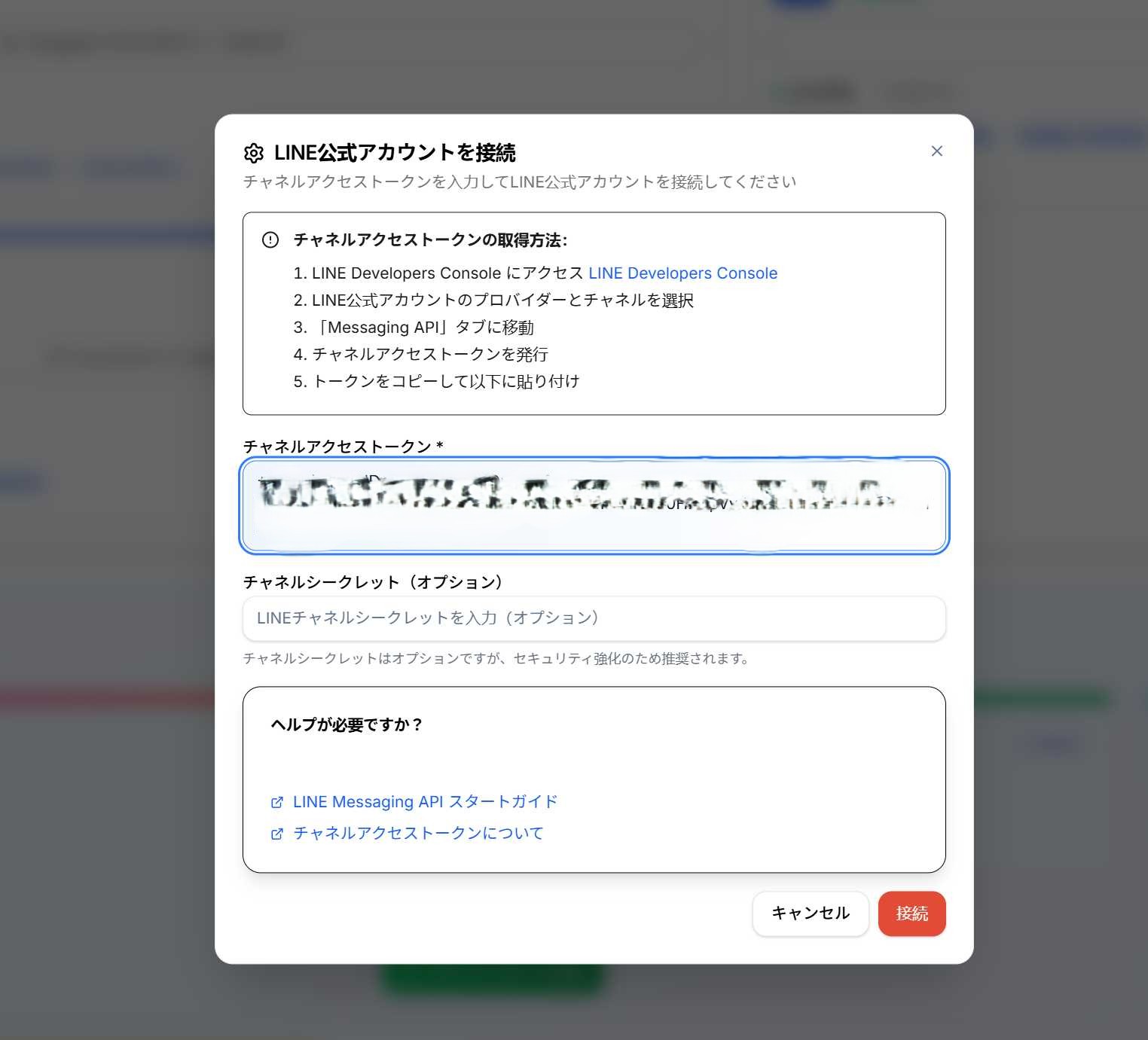
From your POSCOS store settings, navigate to Platform Connections and click "Connect Platform" for LINE. A dialog will appear with instructions on how to obtain your Channel Access Token.
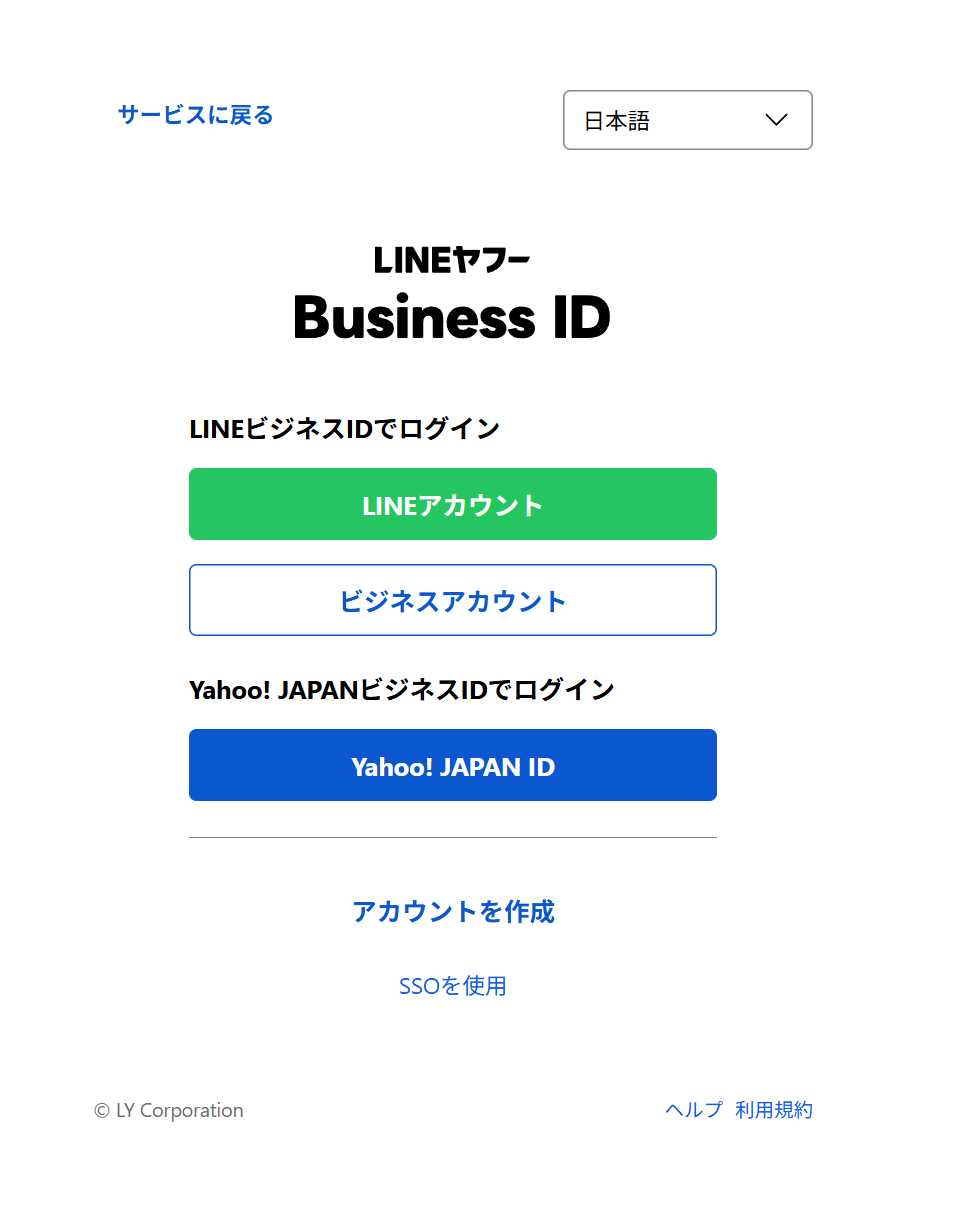
Login to LINE Business ID
Visit the LINE Developers Console login page. You can log in using your LINE Account or Business Account. If you don't have a LINE Business ID yet, you can create one here.
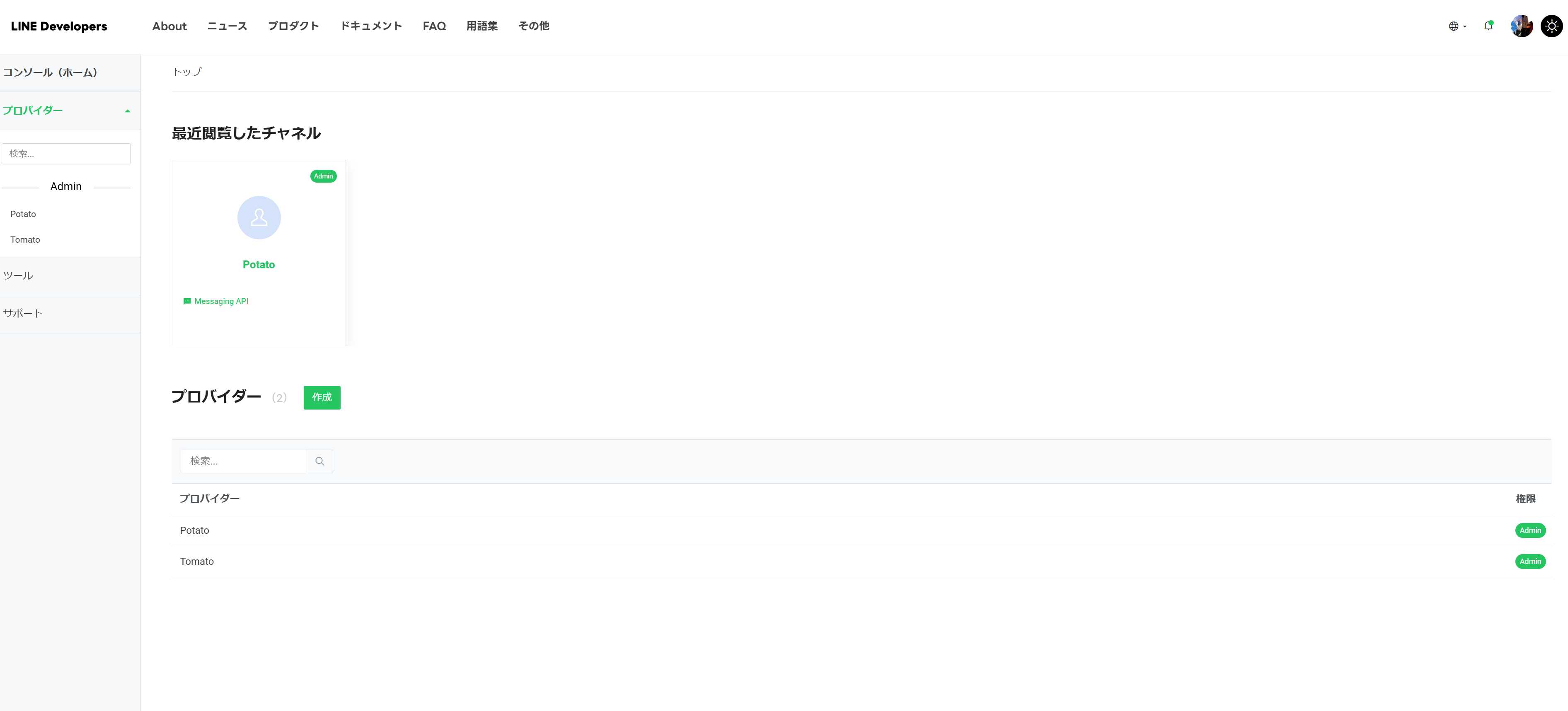
Access LINE Developers Console
After logging in, you will be redirected to the LINE Developers Console homepage. Here you can view all your providers and channels. Click the green "Create" button under Providers section to create a new provider.
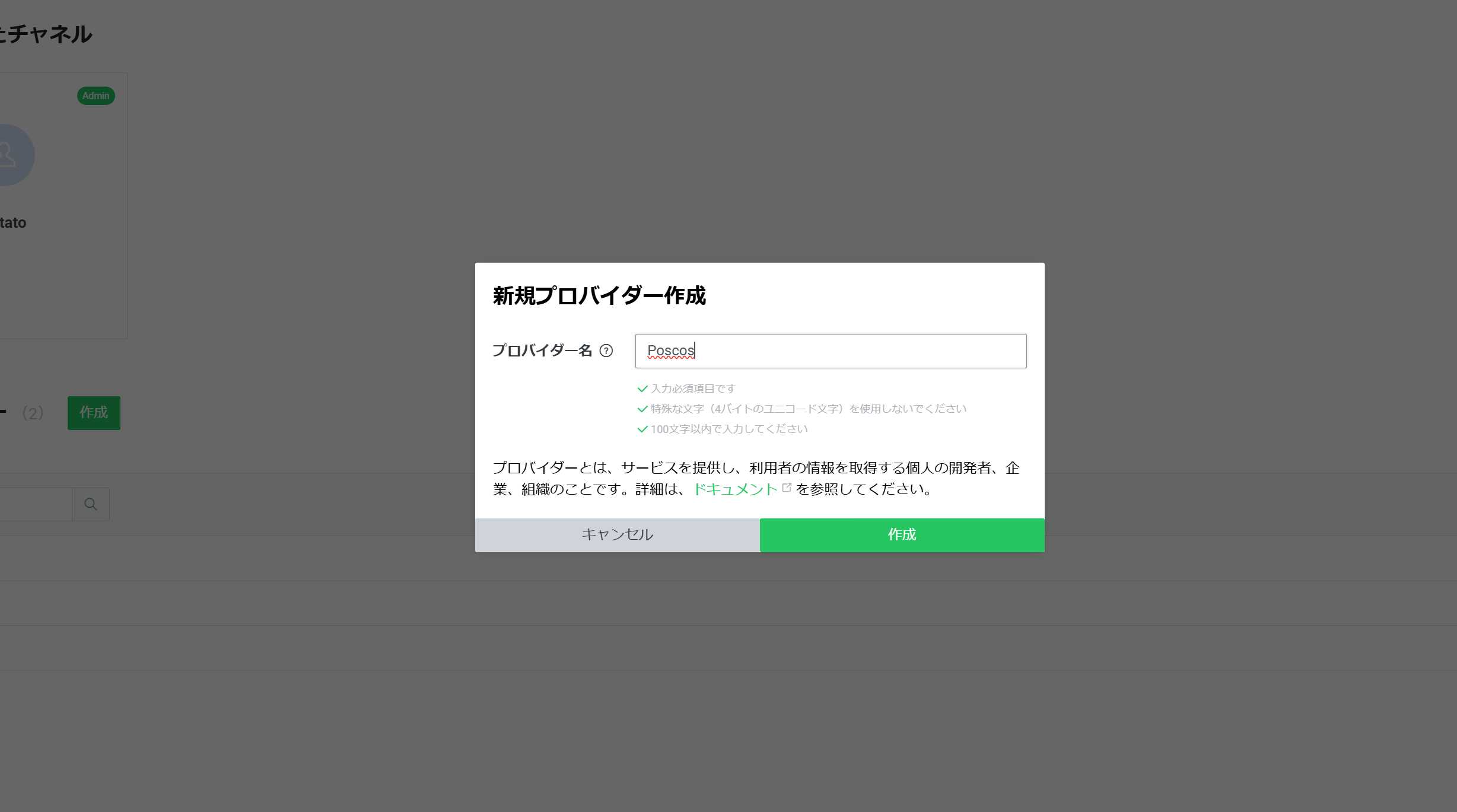
Create a New Provider (If Needed)
If you don't have a provider yet, click the "Create" button to create a new provider. Enter a provider name (e.g., "Poscos") and click "Create" to continue.
View Provider Dashboard
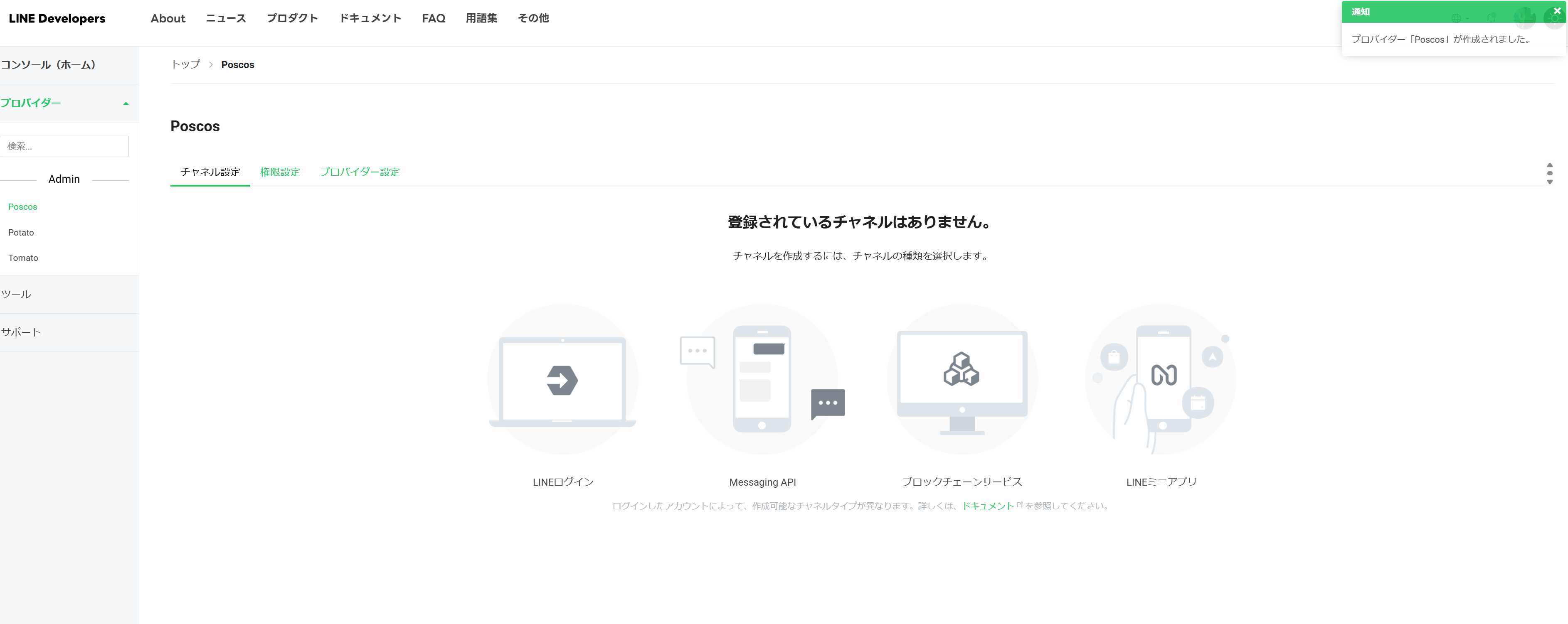
After creating a provider, you will see the provider dashboard. Here you can create channels for different LINE products. Click on the "Messaging API" card to create a Messaging API channel.
Create Messaging API Channel
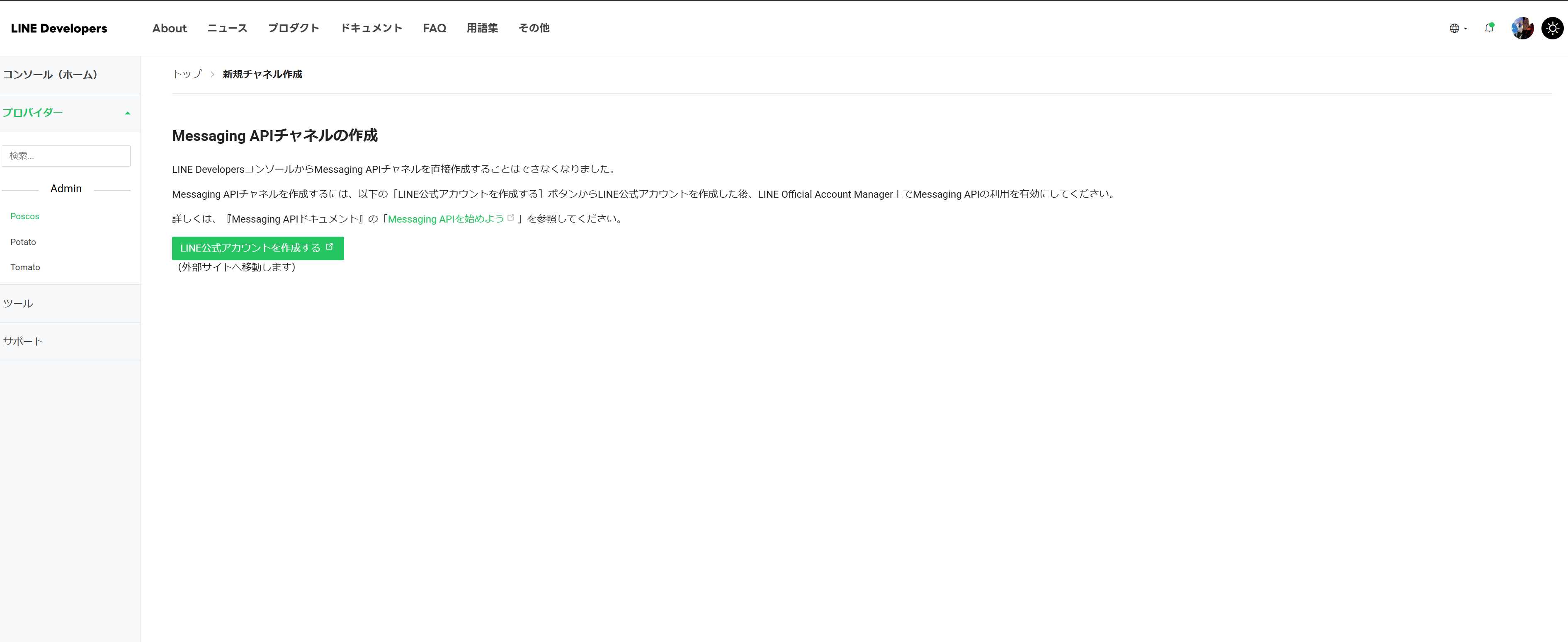
Click the "Create Messaging API channel" button. You will be redirected to an external page to set up your LINE Official Account.
Register LINE Official Account Information
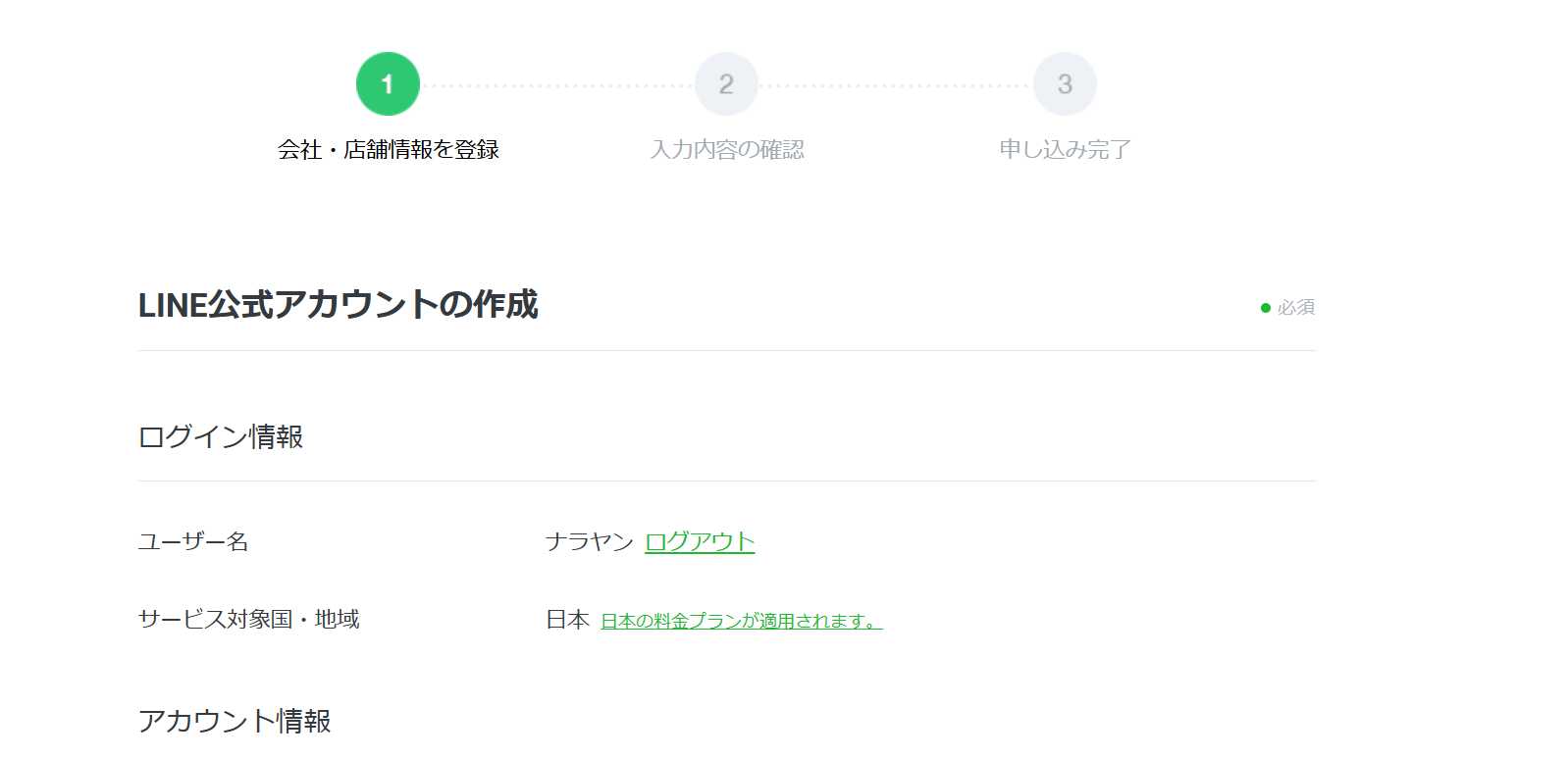
Fill in your LINE Official Account information including account name and service country/region. This will be step 1 of the setup process.
Configure LINE Official Account Settings
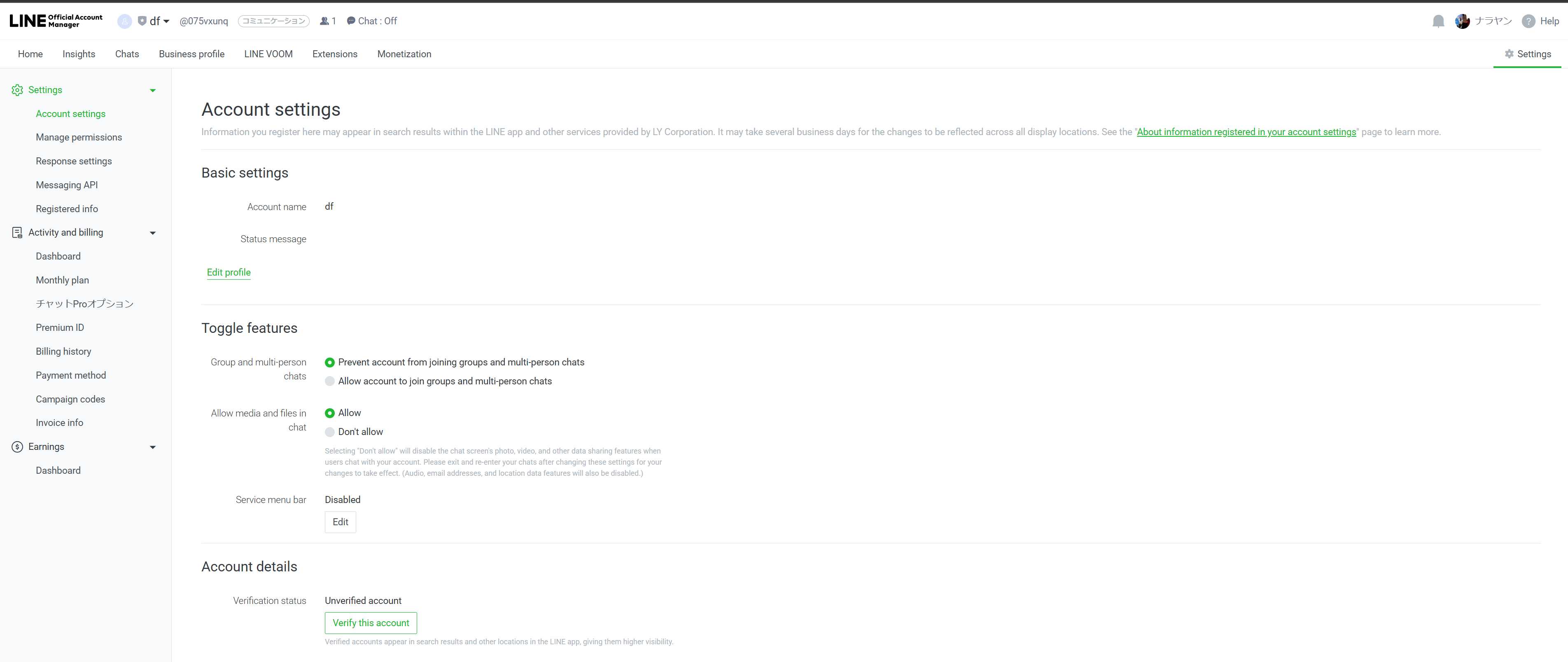
In the LINE Official Account Manager, navigate to Settings → Account settings to configure your account details and preferences.
Enable Messaging API
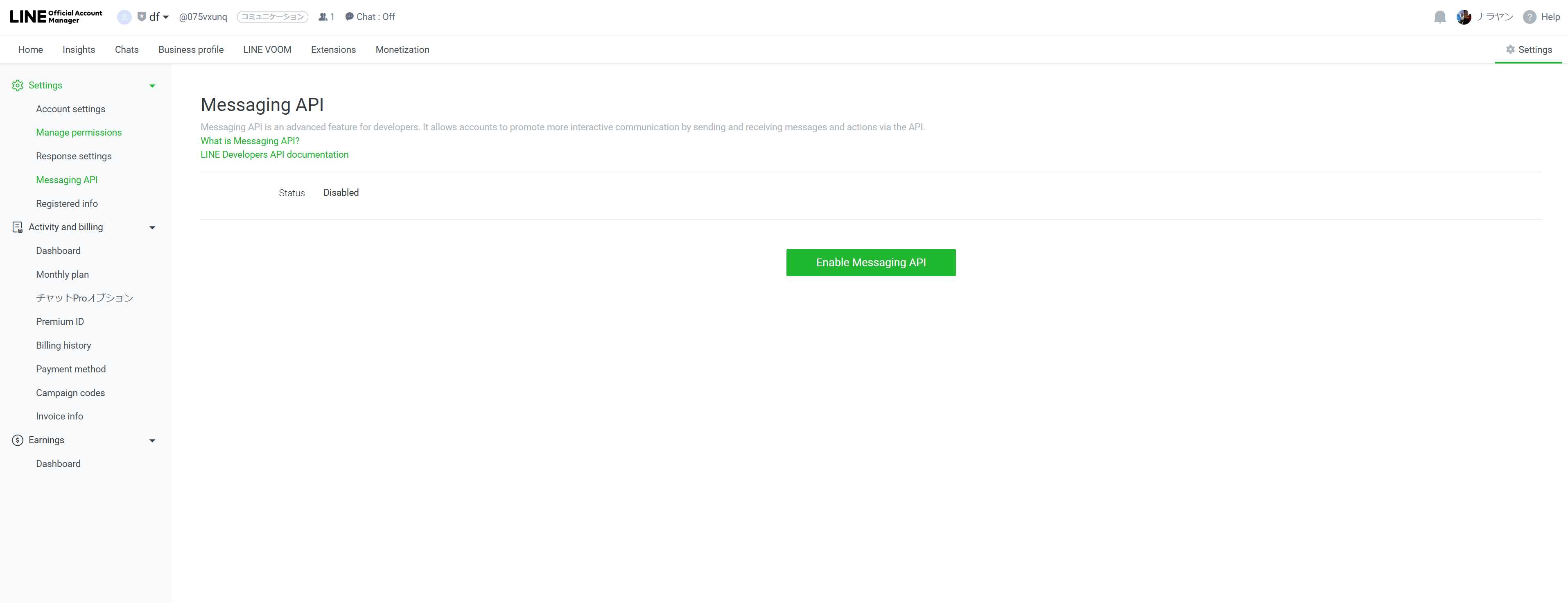
Go to Settings → Messaging API in the LINE Official Account Manager. Click "Enable Messaging API" to activate the API for your account.
Select Provider for Messaging API
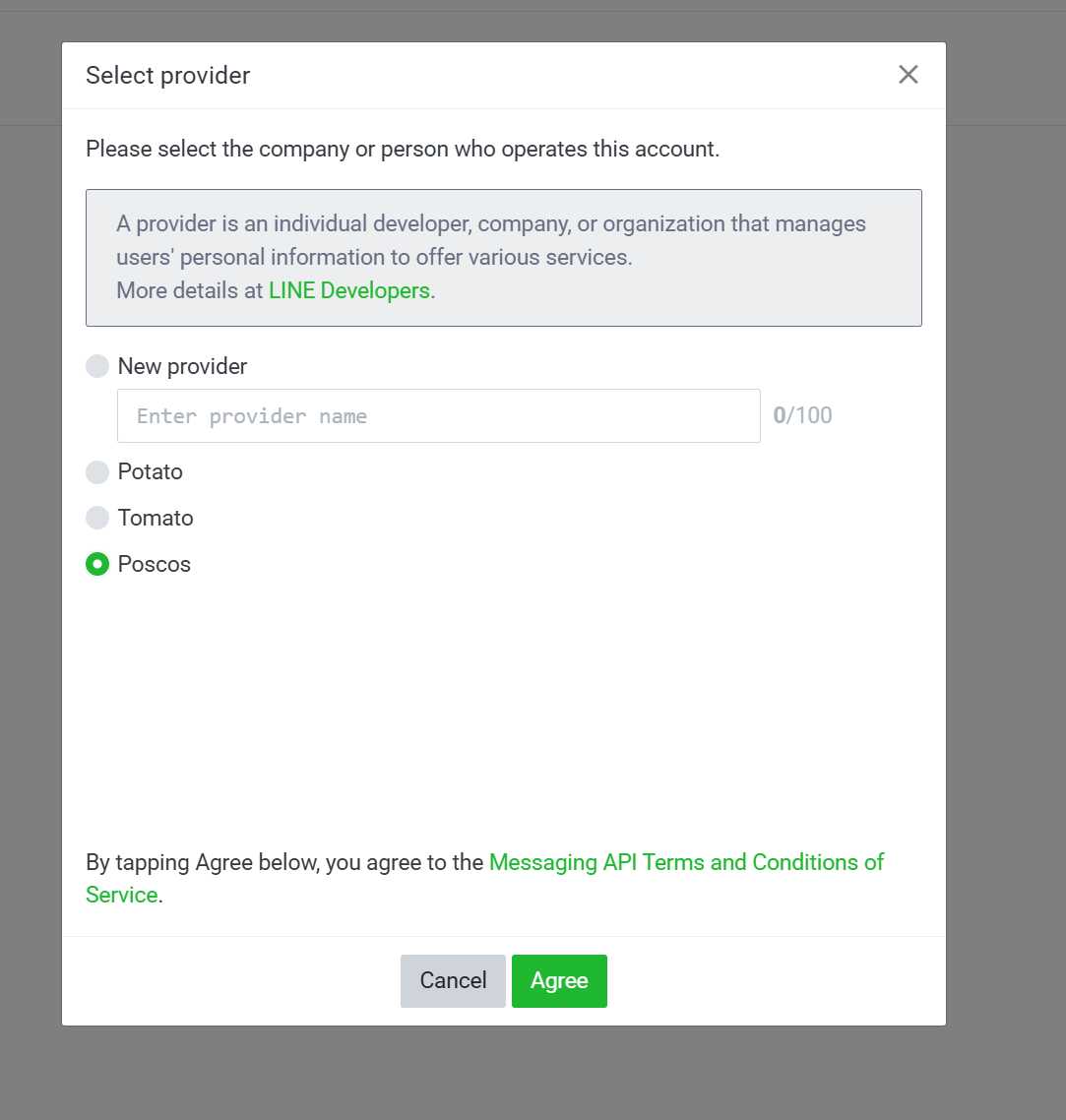
A dialog will appear asking you to select a provider. Choose the provider you created earlier (e.g., "Poscos") and click "Agree" to accept the Messaging API Terms and Conditions.
Verify Messaging API is Enabled
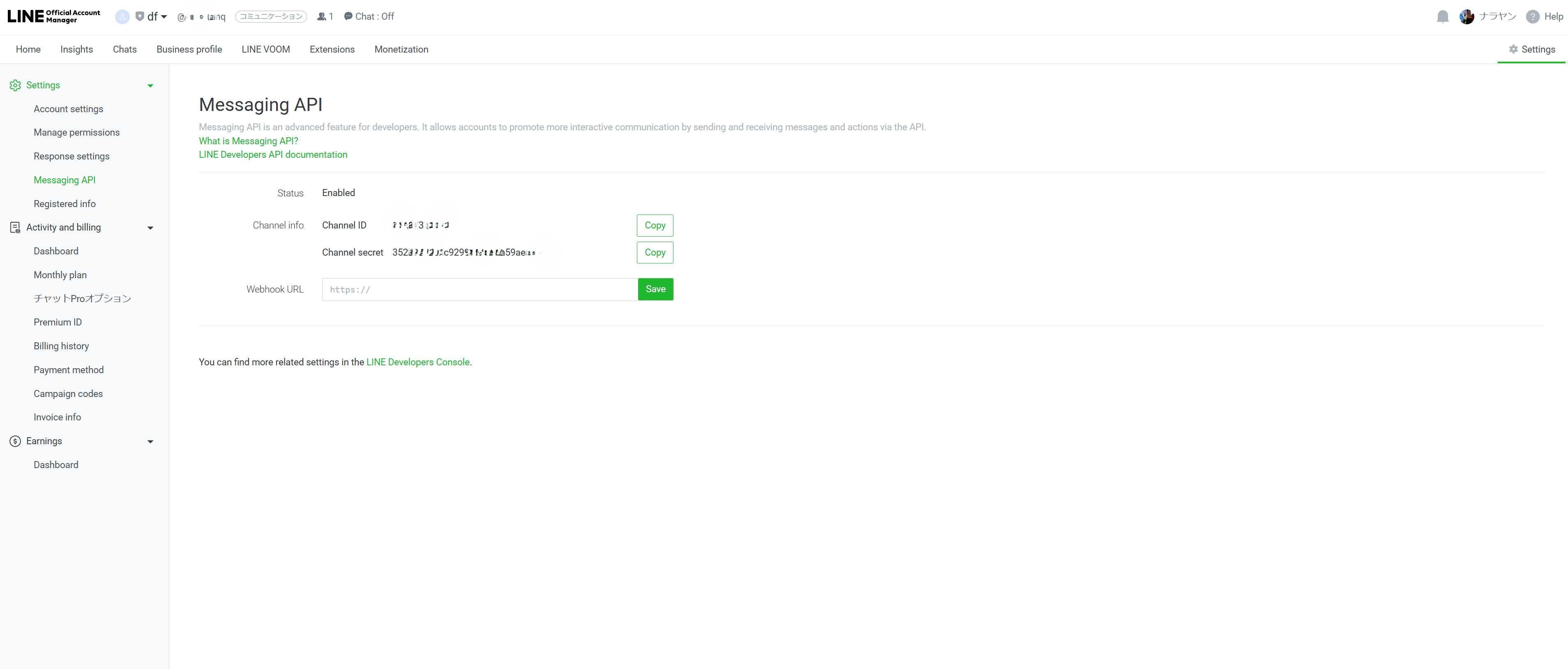
After enabling, you will see the Messaging API status change to "Enabled" with your Channel ID and Channel secret displayed. Click on "LINE Developers Console" link at the bottom to continue.
Return to LINE Developers Console
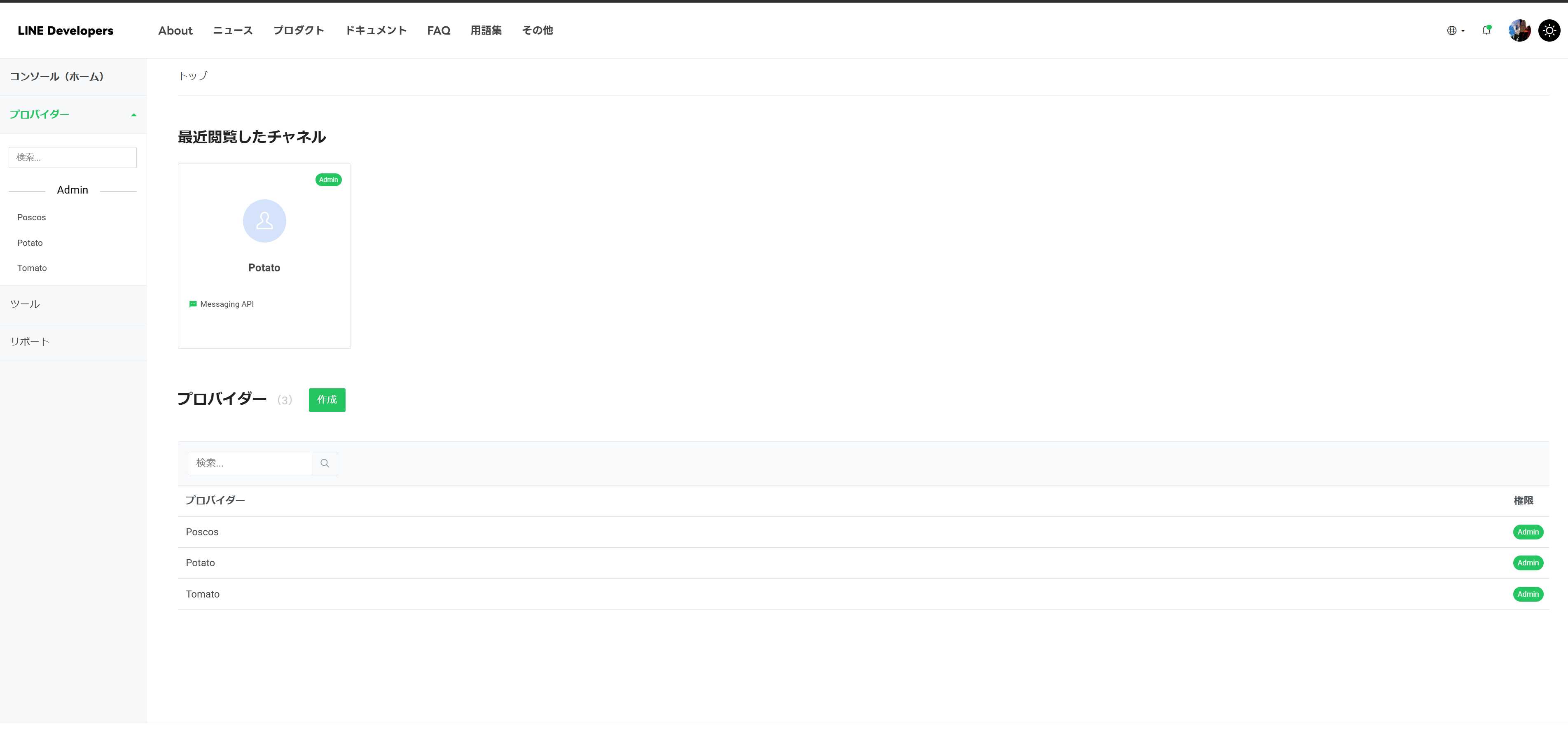
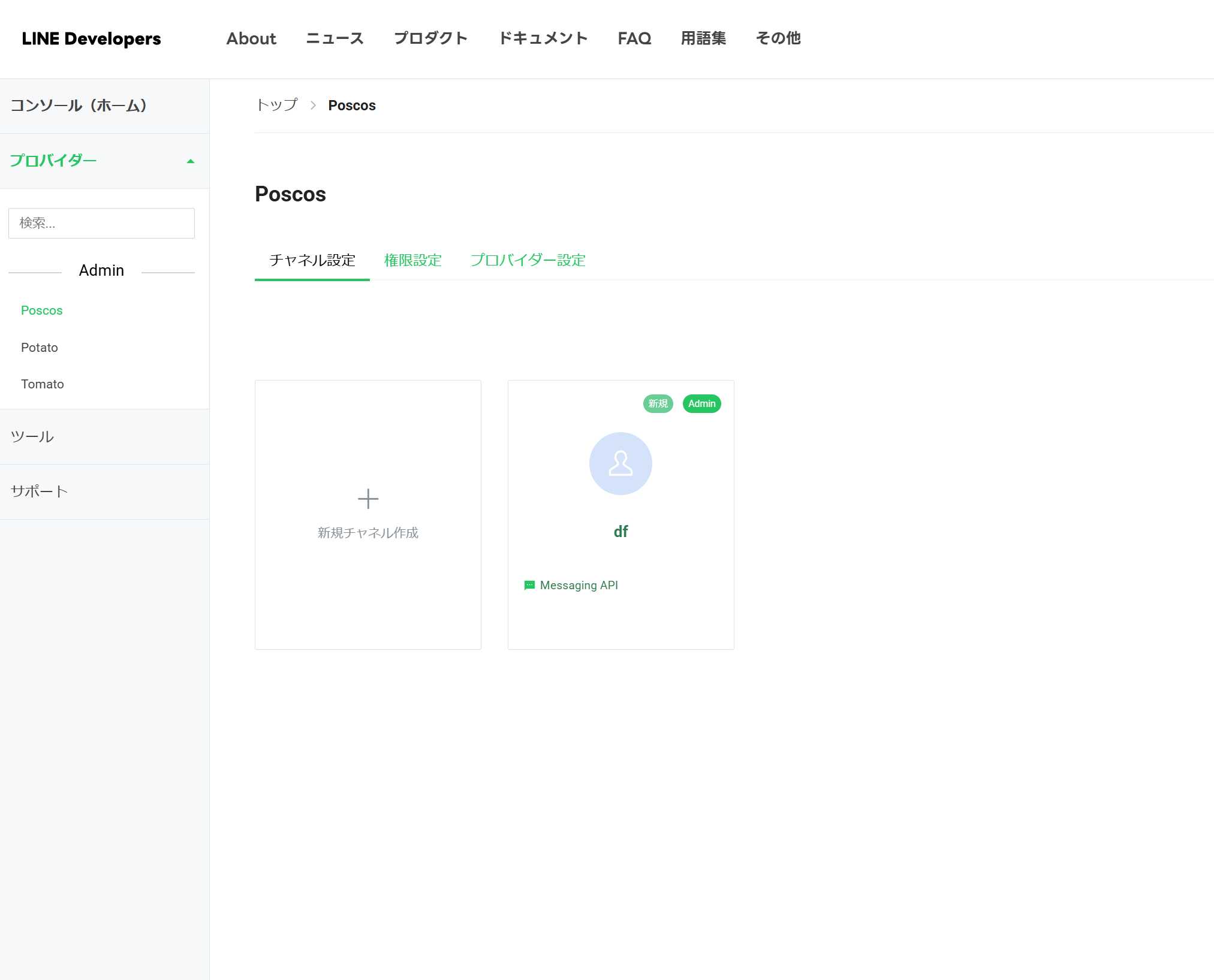
Go back to the LINE Developers Console. You should now see your newly created Messaging API channel listed under your provider. Click on the provider you want to connect to continue.
Access Channel Settings
Click on your channel to access its settings. You will see tabs for Channel settings, Messaging API settings, LIFF, Security settings, and Structure settings.
View Channel Basic Information
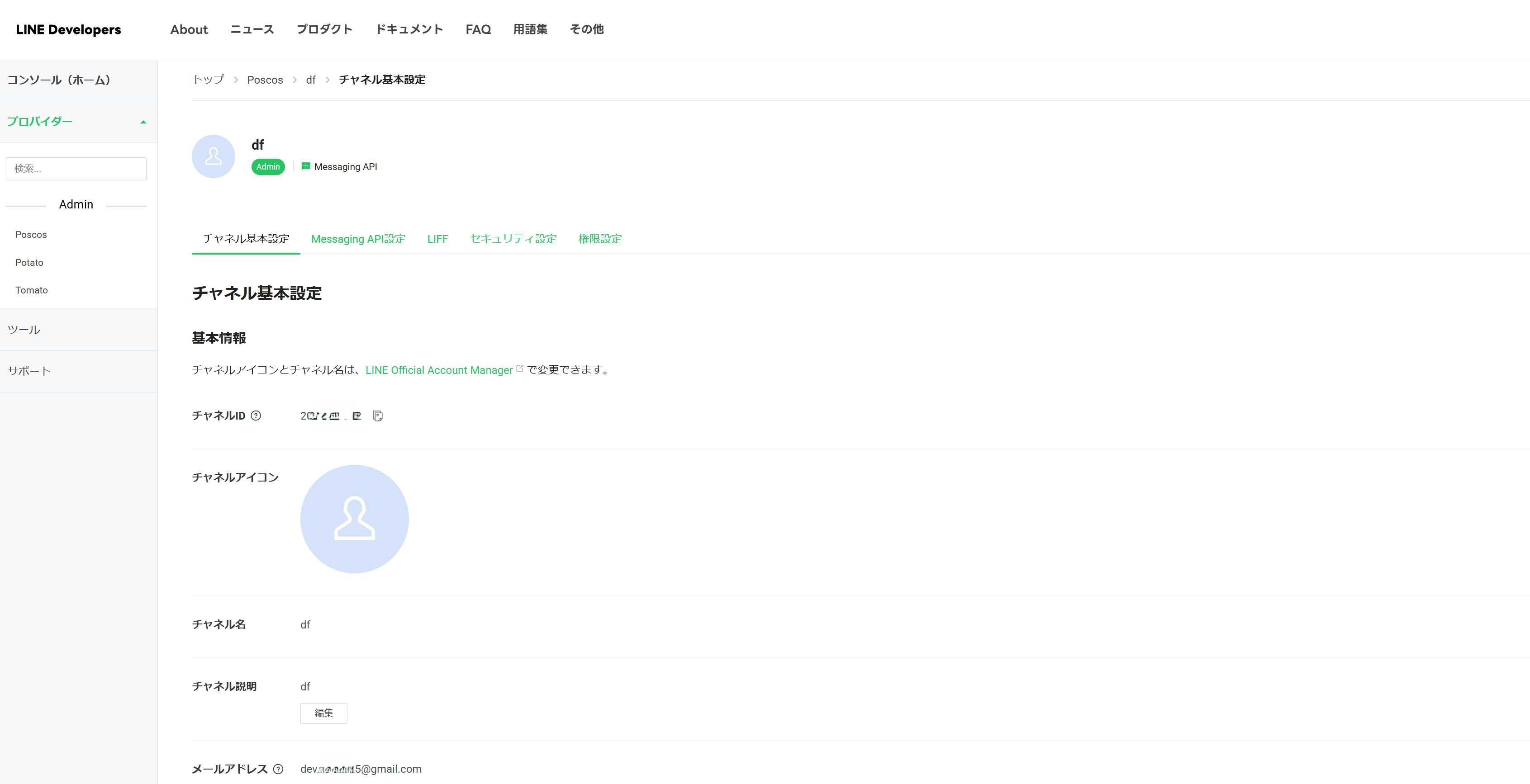
In the Channel settings tab, you can see your Channel ID and other basic information. Make note of your Channel ID as you may need it for reference. Click on the "Messaging API" tab to continue.
Navigate to Messaging API Settings
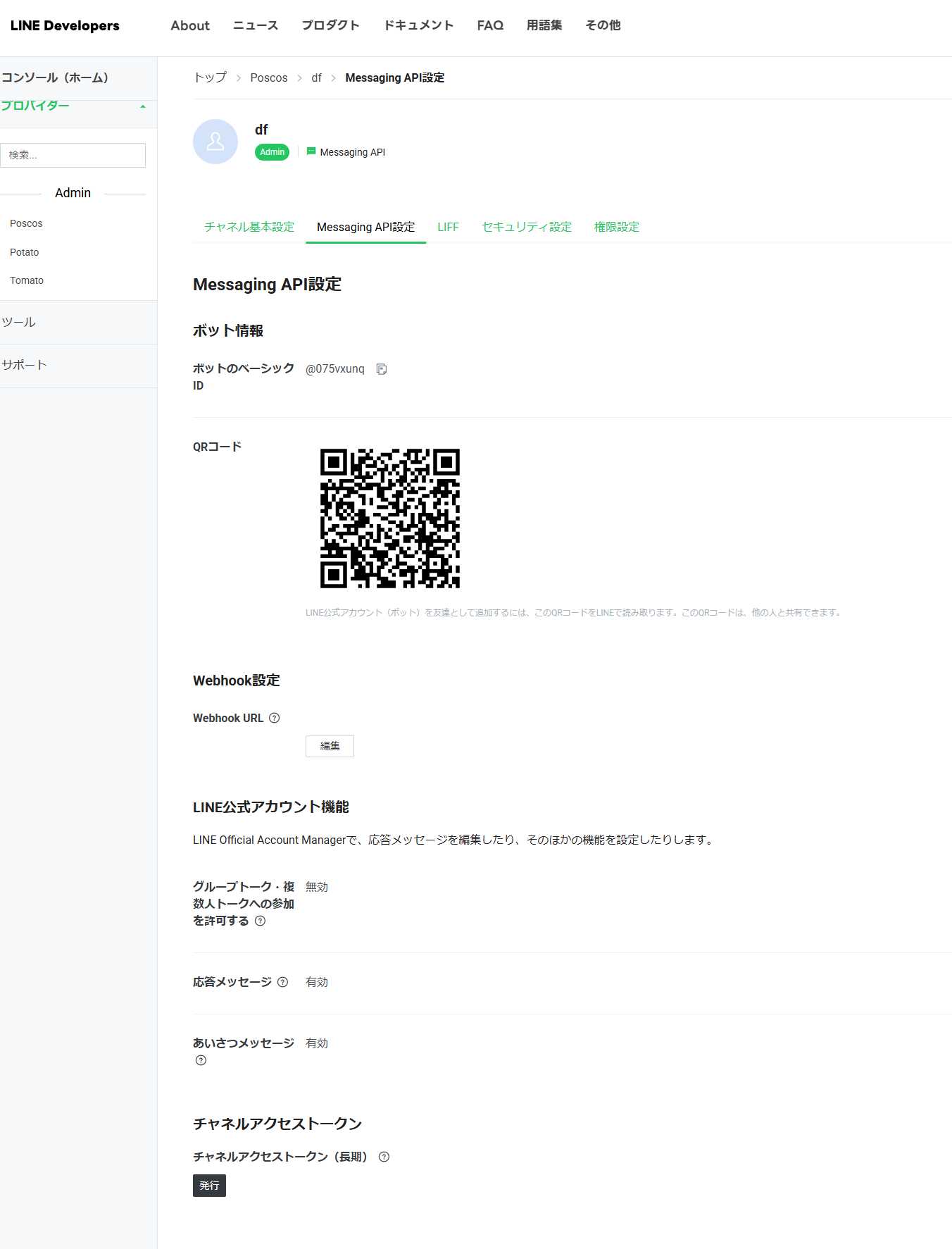
Click on the "Messaging API settings" tab. Scroll down to find the Channel Access Token section. Click the "Issue" button to generate your Channel Access Token.
Generate Channel Access Token
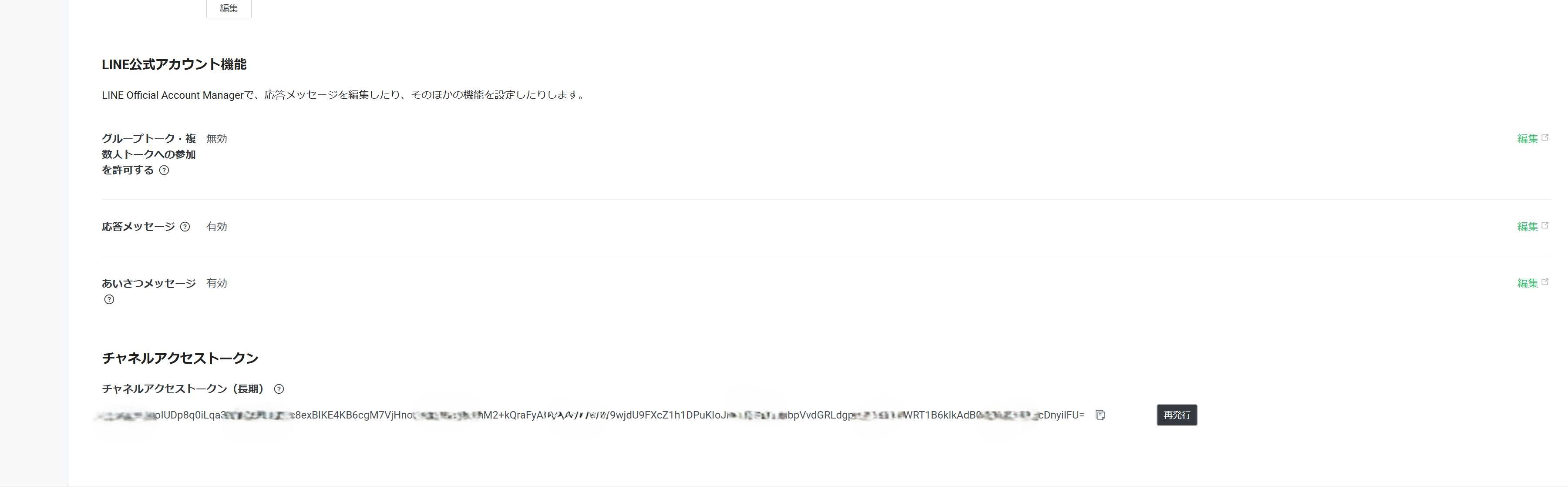
In the Channel Access Token section, you will see the long-term Channel Access Token. Click "Issue" to generate your token if it hasn't been issued yet, then click "Copy" to copy the token.
Paste Token in POSCOS
Return to POSCOS and paste your Channel Access Token in the connection dialog. Optionally, you can also add the Channel Secret for enhanced security. Click "Connect" to complete the setup.
Important Notes
- ✓
LINE Official Account Required: You must have a LINE Official Account (formerly LINE@ account) to use the Messaging API. Personal LINE accounts cannot be used.
- ✓
Channel Access Token: The Channel Access Token is required to connect your LINE Official Account to POSCOS. Keep this token secure and never share it publicly.
- ✓
Channel Secret (Optional): While optional, adding the Channel Secret provides enhanced security for your connection. It is recommended to include it.
- ✓
Messaging API Features: After connecting, you can send broadcast messages, push messages to specific users, and use rich message templates through POSCOS.
- ✓
Account Verification: For better visibility in LINE search results, consider verifying your LINE Official Account. This can be done from the LINE Official Account Manager settings.
- ✓
Webhook Settings: POSCOS automatically handles webhook configuration. You do not need to manually set up webhooks in the LINE Developers Console.
- ✓
Disconnecting: You can disconnect your LINE Official Account at any time from the Platform Connections page in POSCOS. This will revoke access but keep your message history.