
How to Create a Manual Post
Follow this step-by-step guide to create and publish custom social media posts manually
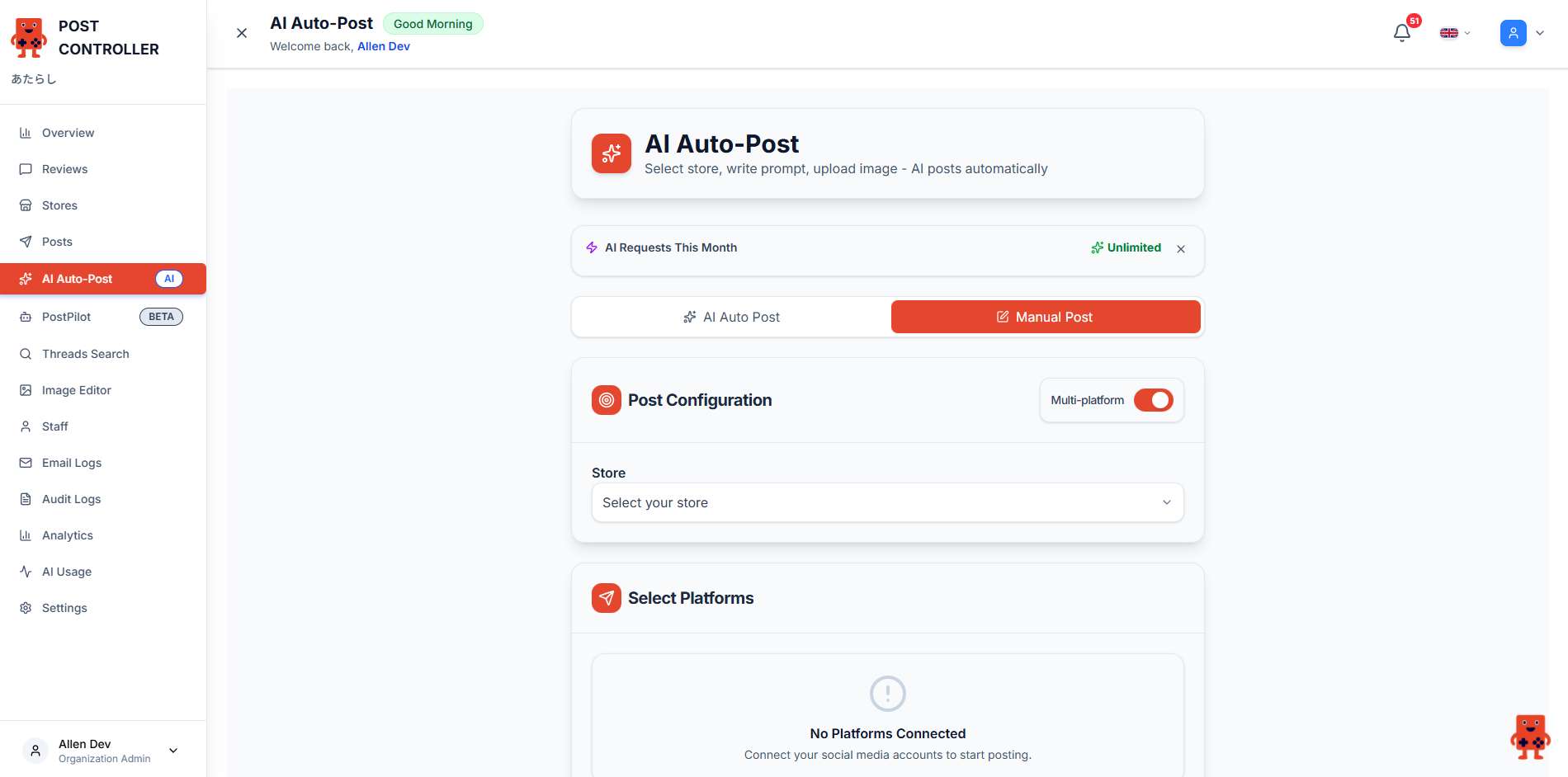
Navigate to Manual Post
From the AI Auto-Post page, click the "Manual Post" button to create a custom post.
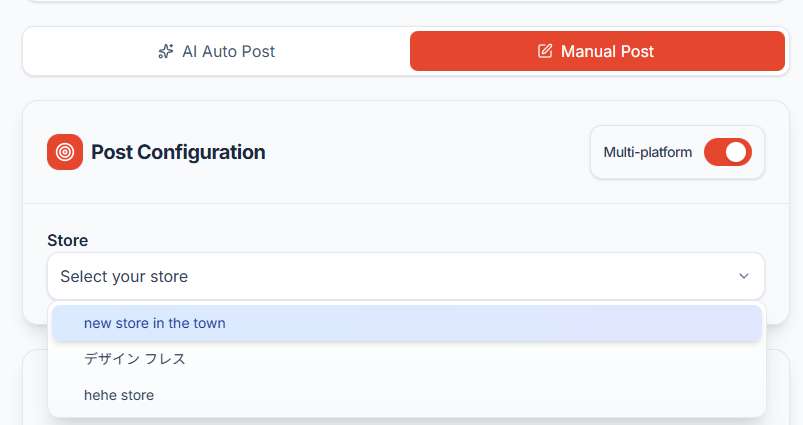
Select Your Store
Choose which store location you want to post from using the store dropdown.
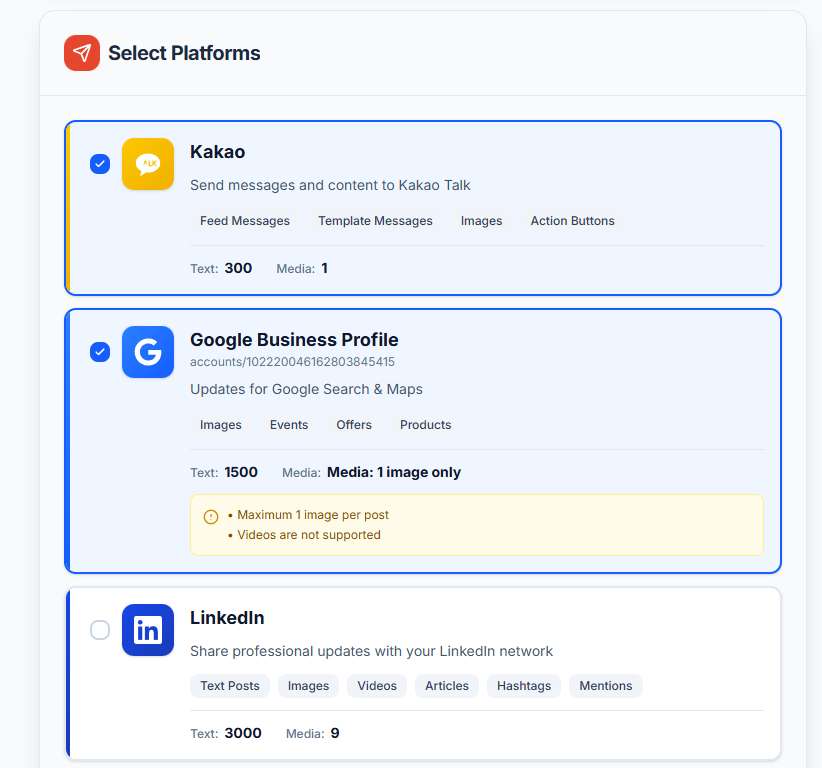
Choose Platforms
Select which social media platforms you want to post to. You can select multiple platforms at once.
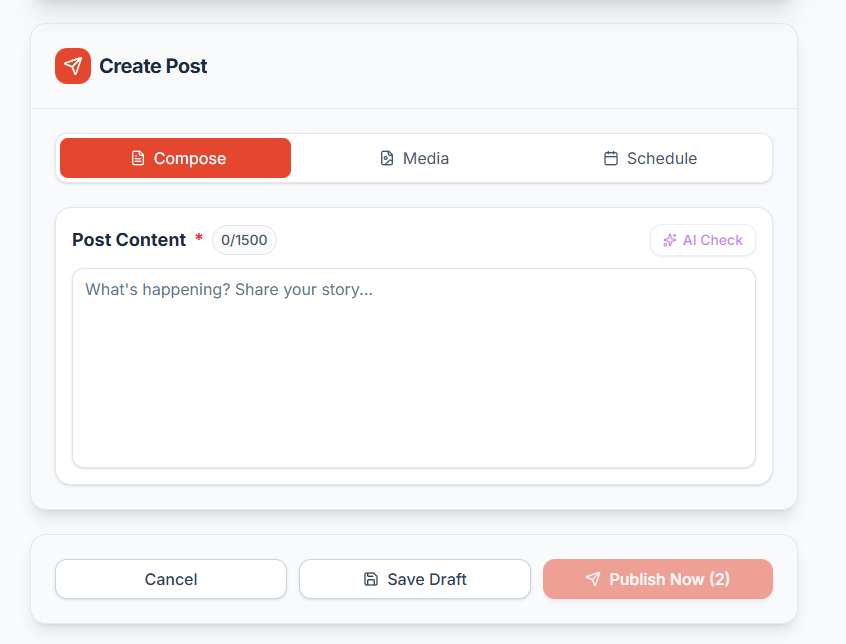
Compose Your Post
Write your post content in the text area. The character counter shows how many characters you have left.
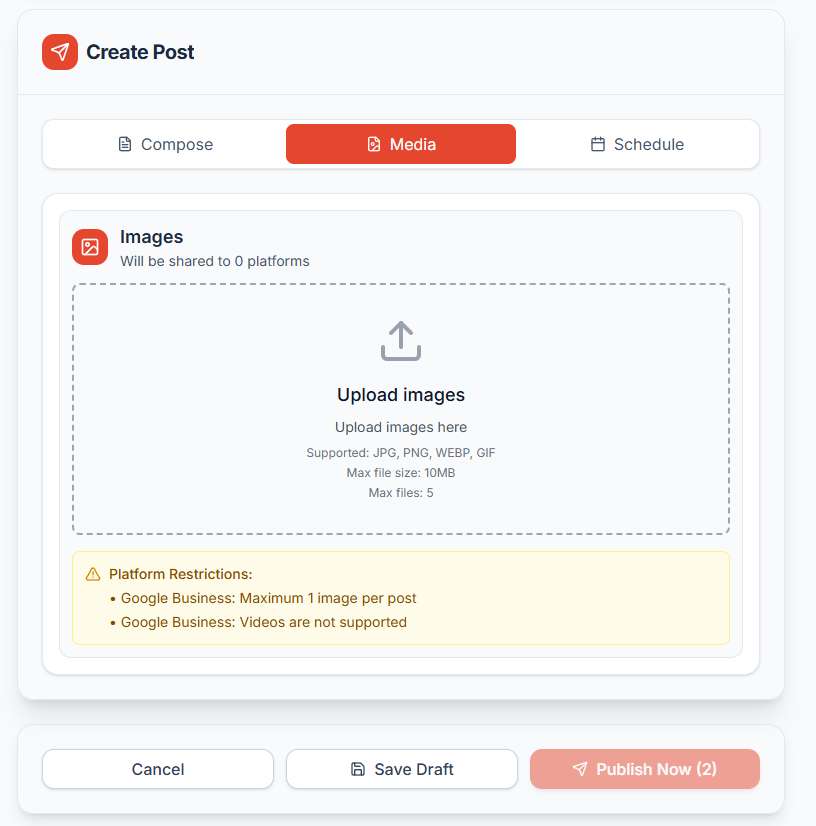
Upload Media (Optional)
Click the "Media" tab to upload images for your post. You can upload up to 5 images.
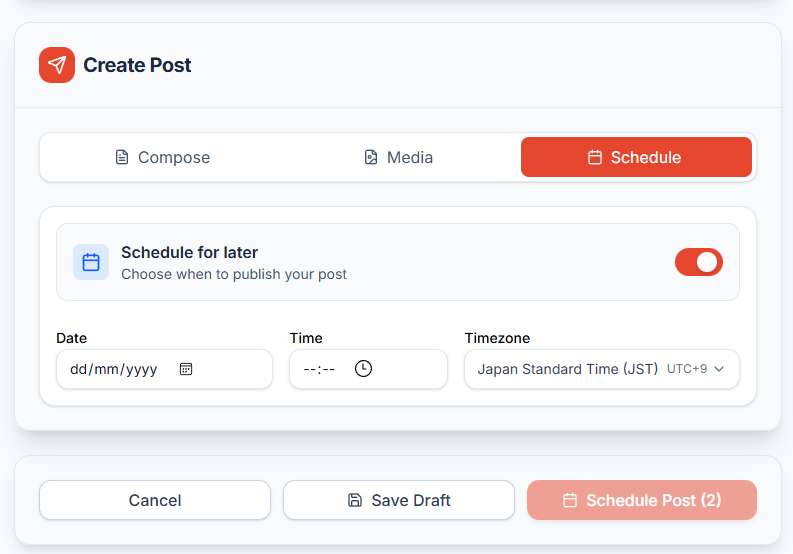
Schedule or Publish
Choose to publish immediately or schedule for later. Click "Schedule" tab to set a specific date and time.
Pro Tips
- ✓
Multi-Platform Toggle: Enable "Multi-platform" mode to post the same content to all selected platforms at once
- ✓
Save as Draft: Use the "Save Draft" button to save your work and come back later
- ✓
Platform Restrictions: Pay attention to platform-specific restrictions like image limits and character counts
- ✓
AI Check: Use the "AI Check" feature to get suggestions for improving your post content